Manage Central School Account
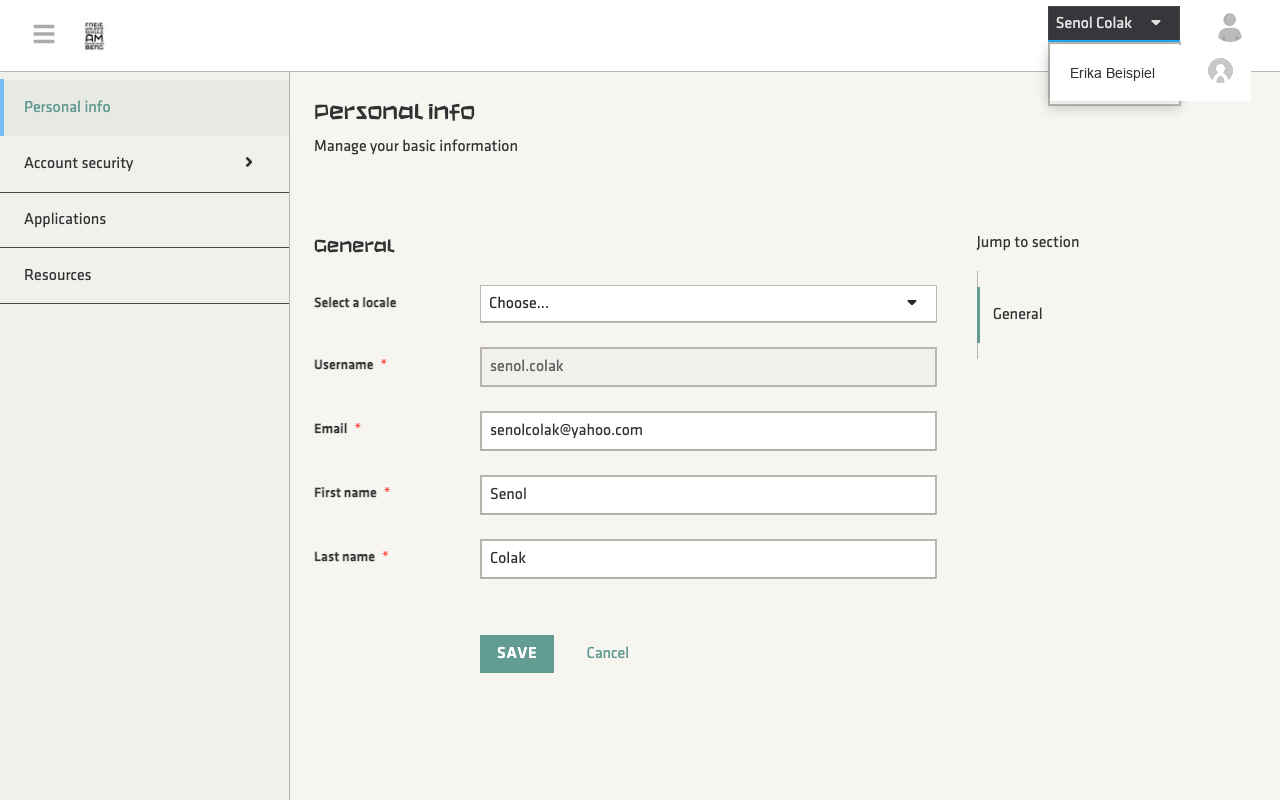
Your access to all digital school services (such as the school portal and Zulip) is managed via a central identity platform (Keycloak). Here you can review and update your password, personal data, and security options.
Password Centralization
Zulip uses the same central school account. Zulip does not manage a separate password.
What Profile Data is Available?
It is important to distinguish between the different data fields of your account:
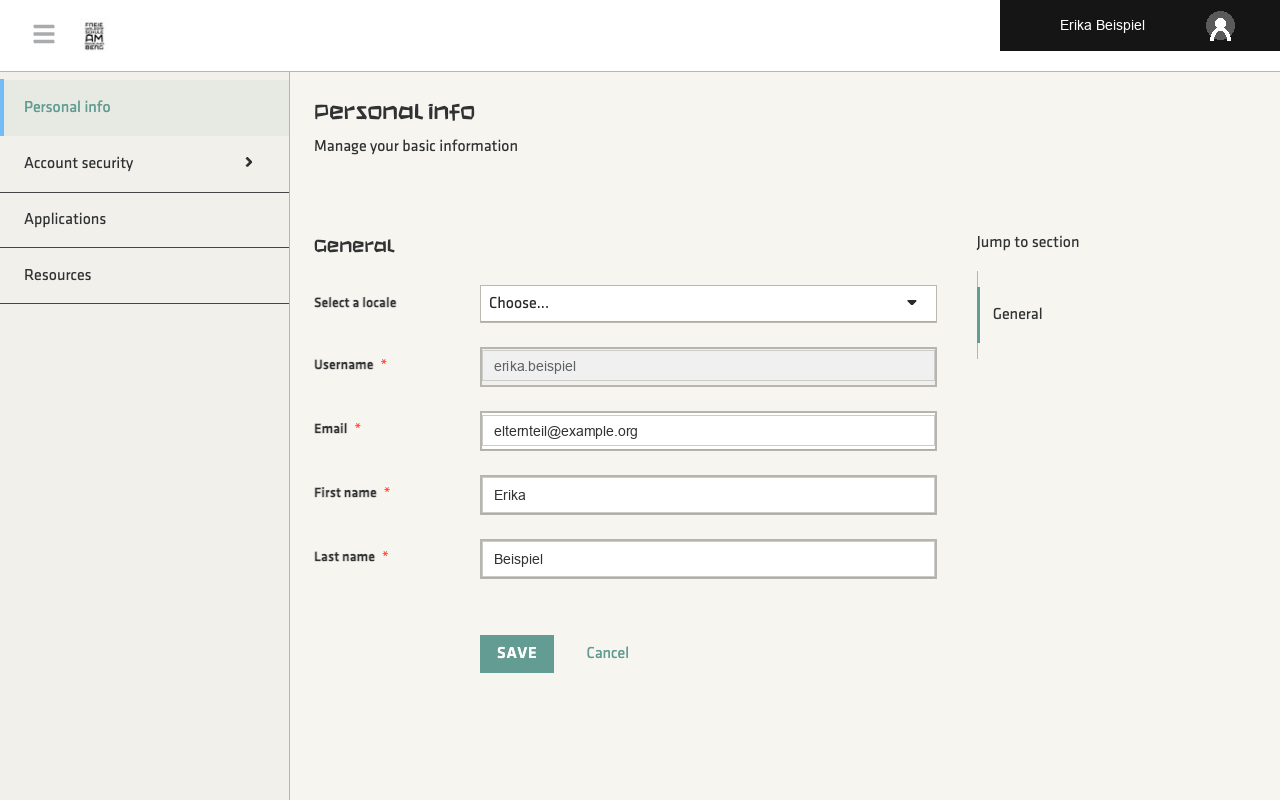
- Technical Username: The technical username is fixed and cannot be changed by the user. It is used internally for portal integration.
- Email Address: Your registered email address for system notifications.
- First and Last Name: Your official name in the school database.
- Zulip Display Name: Your custom name in Zulip (e.g., adding your child's name), visible to other parents. You can customize this in Zulip profile settings.
- Zulip Profile Picture: Your chat avatar, which you can upload inside Zulip.
Editable Profile Fields
Depending on the account configuration, email address, first name and last name may be editable. If a field is locked or a change is not saved, contact support.
Managing Your Password
Changing your password differs depending on whether you are logging in for the first time or updating your password later:
A. First Login or Required Password Reset
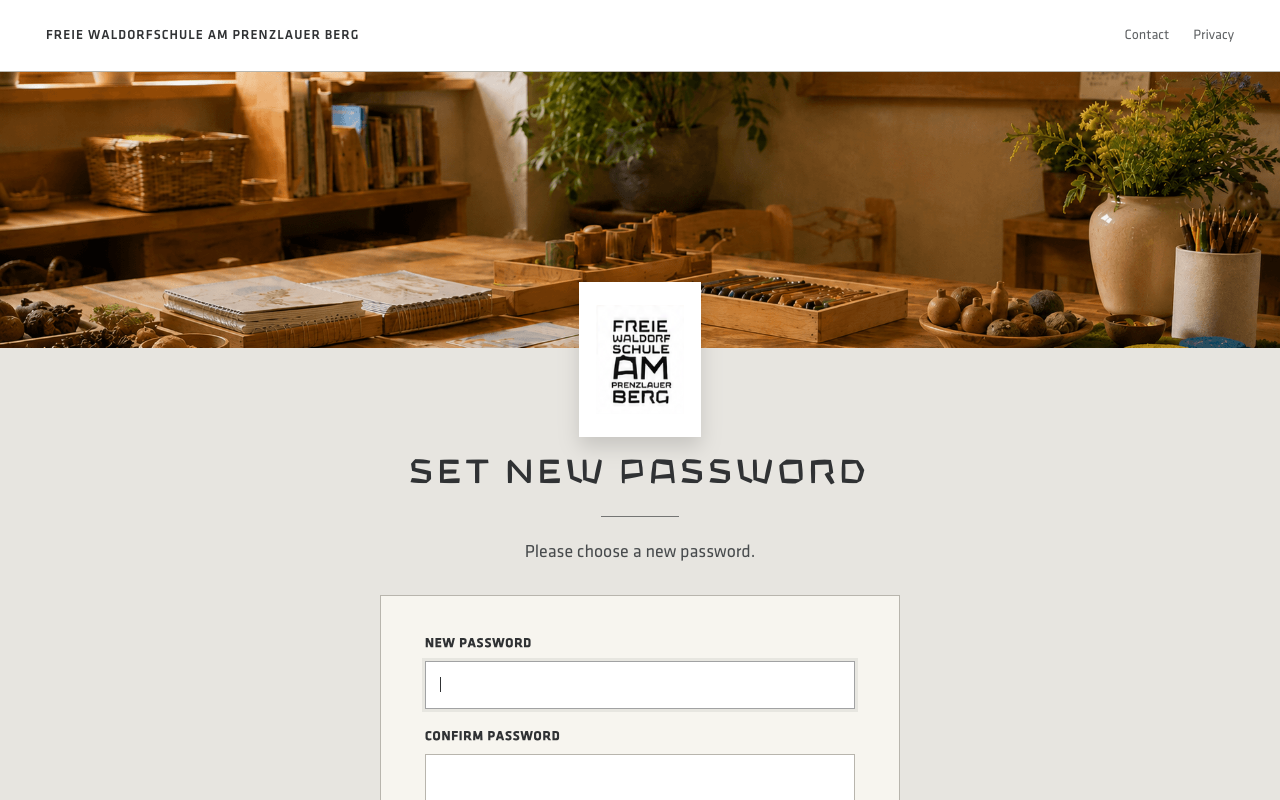
If the school provided you with a temporary password or you followed a password-reset link, the system will automatically prompt you to set a new password.
- Enter your new password in the New Password field.
- Type it again to confirm in the Confirm Password field.
- Submit the form and sign in again with your new password if requested.
B. Changing the Password Later
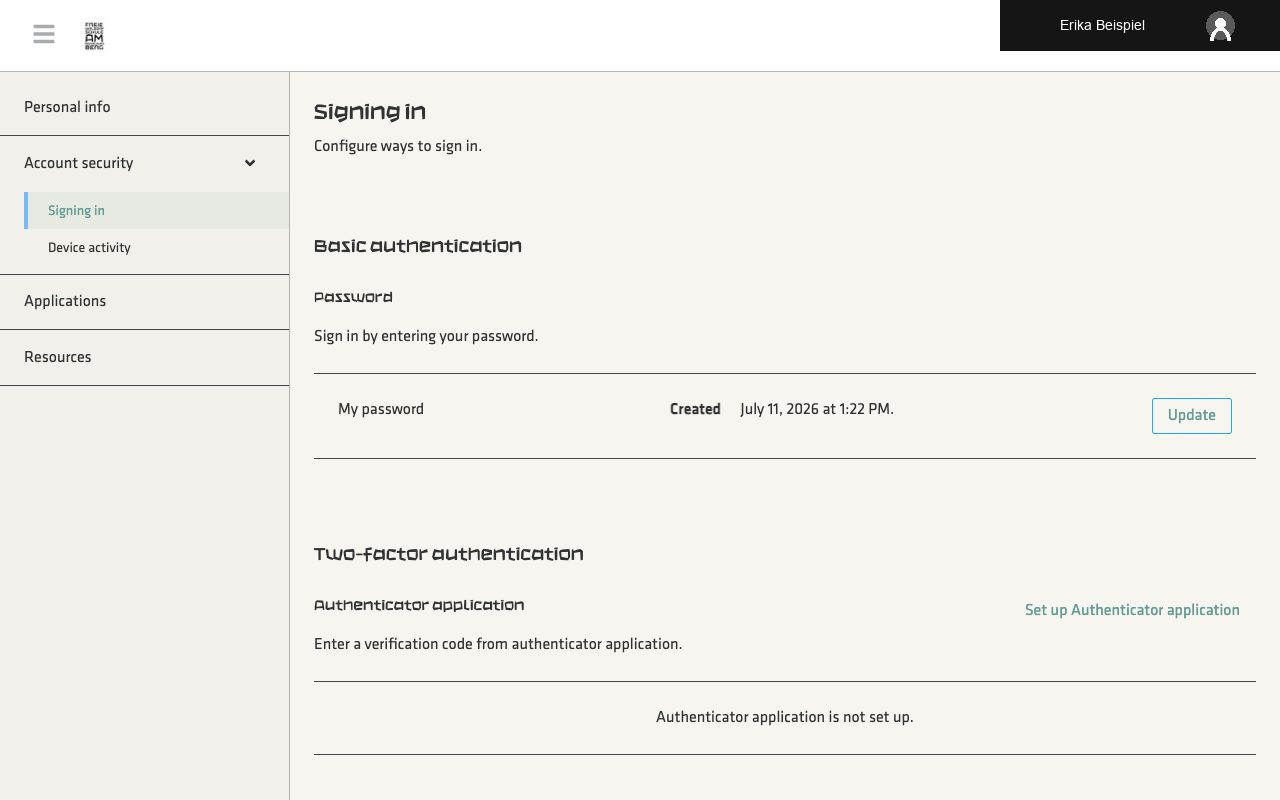
If you want to update your working password later, you can do so through the account security dashboard:
- Log in to the school portal and open the account console.
- Select the Account security section in the sidebar.
- Select Signing in.
- In the Password row, select Update.
- Follow the instructions shown by the system to change your password.
Guidelines for a Secure Password
Password Security Rules
- Uniqueness: Use this password exclusively for your school account.
- Length: Your password should be at least 12 characters long.
- Complexity: Use a mixture of uppercase and lowercase letters, numbers, and special characters.
- Never Share: Never send your password via email, chat message, or text. Support staff will never ask for your password.
Logging Out of the School Portal
To log out securely, click your name or profile picture in the top-right corner and select Sign out.