
Setting up Two-Factor Authentication (OTP)
Two-factor authentication (also known as OTP) provides an extra layer of protection for your school account. Even if someone steals your password, they cannot log in to your account without the security code generated on your smartphone.
Why Two-Factor Authentication is Important
Personal information is shared on the school portal and Zulip. By activating OTP, you secure the privacy of your family and the entire school community.
-
1
Install an Authenticator App
Download a free One-Time Password (OTP) app to your smartphone. Recommended options include:
- FreeOTP (Open Source, privacy-oriented)
- Google Authenticator
- Aegis Authenticator (for Android)
-
2
Open Security Settings
Log in to the school portal and open the account console:
- Select Account security from the left menu.
- Select Signing in.
- Find the Two-factor authentication section and click Set up Authenticator.
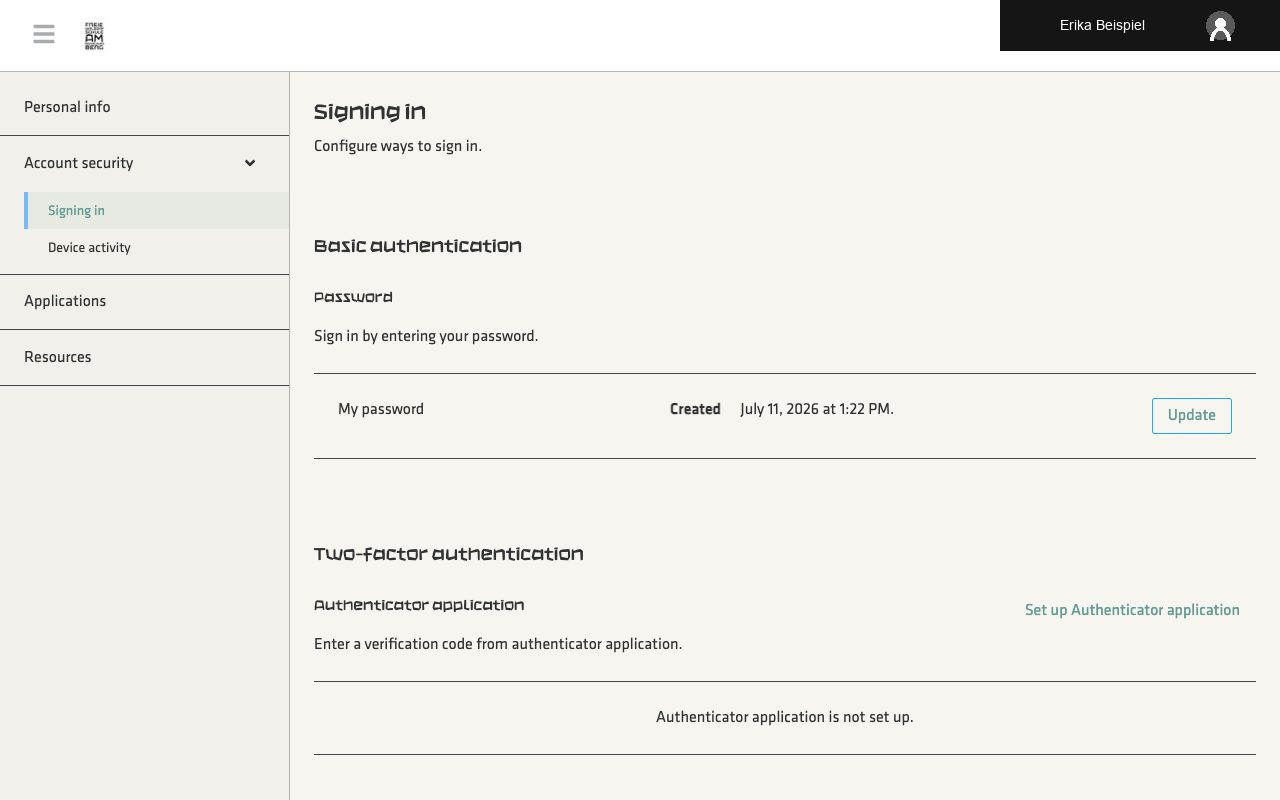
Step 2: The Set up Authenticator option in the account console settings. -
3
Scan the QR Code
A page showing a barcode/QR code will load:
- Open the authenticator app on your smartphone.
- Select the option to add a new account (typically a plus sign) and choose Scan QR code.
- Point your phone's camera at the screen to scan the code.
Your app will now display a new entry with the school's name and a six-digit code that changes every 30 seconds.
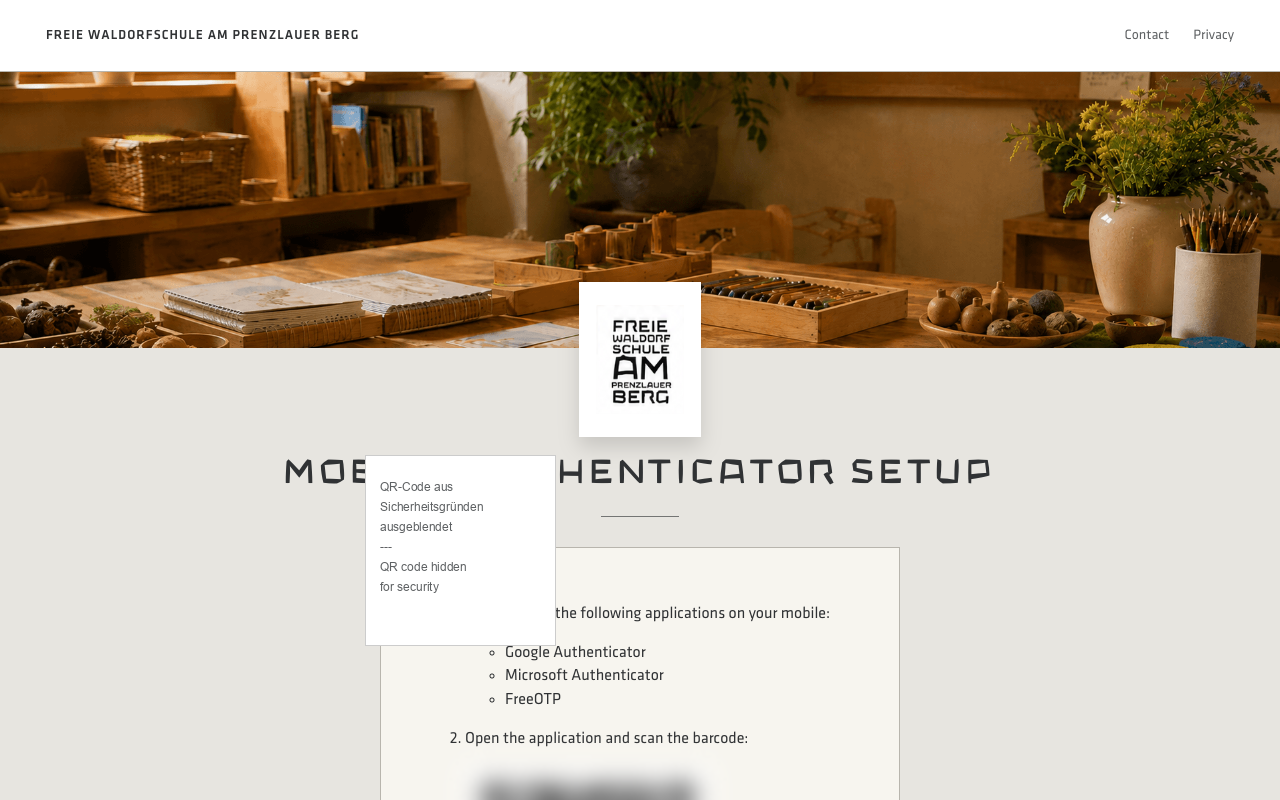
Step 3: The setup QR code (hidden for security purposes in our screenshots). -
4
Enter Code and Register Device
Enter the current code and a name for your device into the fields on the screen:
- Type the six-digit code currently shown in your app into the One-time code field.
- Enter a name for your smartphone in the Device name field (e.g.,
My Smartphone) so you can identify it later. - Select the save button to complete the setup process.
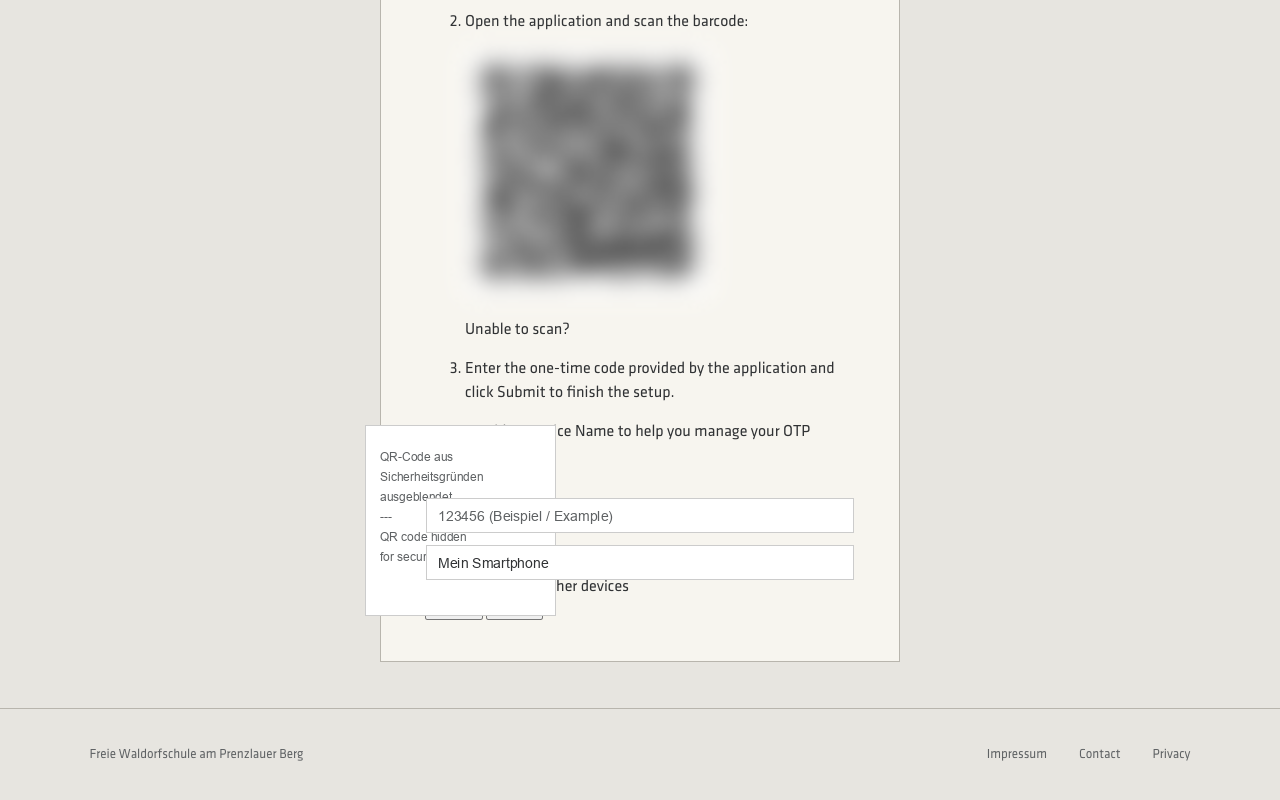
Step 4: Submitting the activation code and device nickname.
Important for Future Logins
Logging In with Two-Factor Authentication
For all future logins to the school portal, enter your username and password as normal first. Immediately after, the system will prompt you for a one-time code. Open the app on your smartphone and enter the 6 digits shown there.