
Using Zulip (Beginner Guide)
Zulip is the official communication tool for families, teachers, and the school administration. Unlike traditional chat applications, Zulip organizes conversations into clear topics, allowing you to find important information quickly even days later.
-
1
What Zulip is Used For
Zulip is used to share organizational news, parent-teacher meeting notices, festival preparations, and to direct-message teachers or school management.
An example would be a class channel with a topic such as “Parents' evening”. The actual channels in your account may have different names.
-
2
Inbox and Unread Messages
Zulip shows you unread messages in the left sidebar under the item Inbox.
Clicking on Inbox or Recent conversations displays all new messages consolidated and grouped by channel.
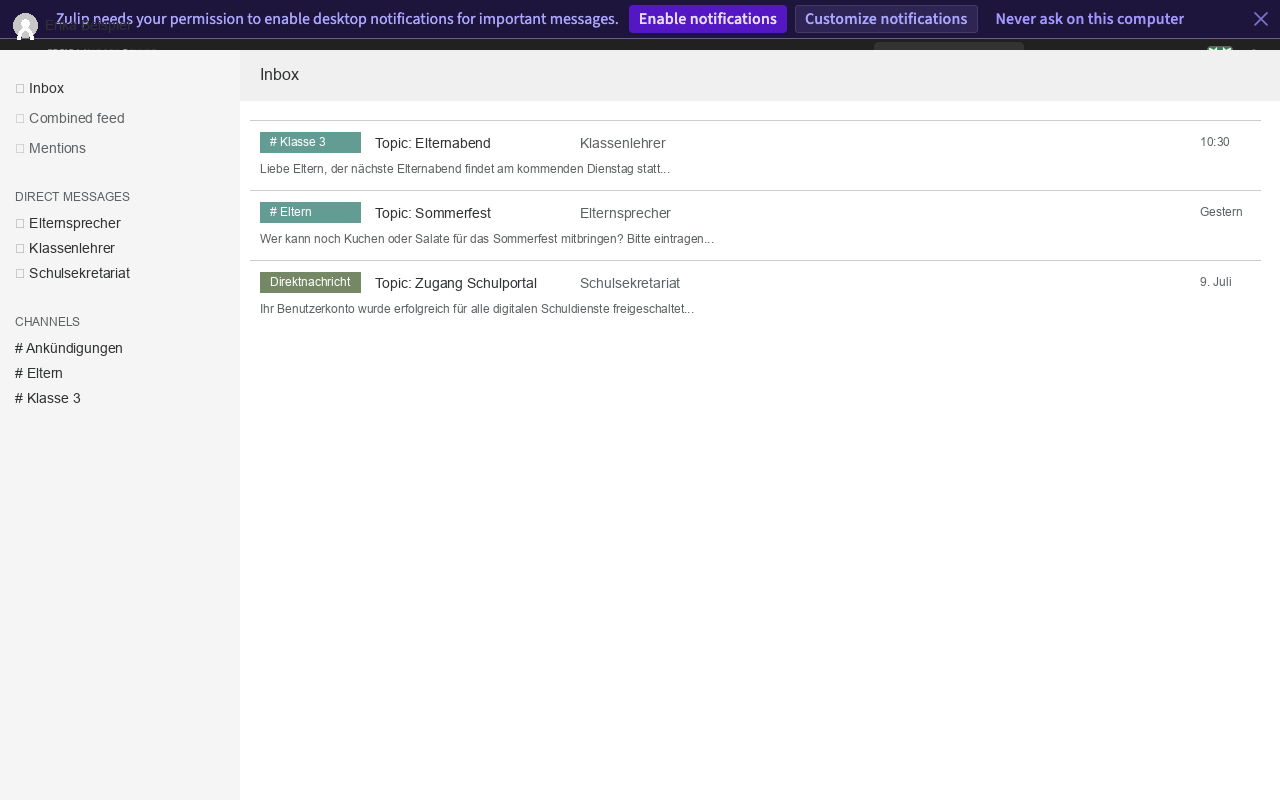
Step 2: The Inbox view in the Zulip workspace. -
3
Channels and Topics
Zulip uses two main organization concepts in the left sidebar:
- Channels (formerly Streams): A channel represents a specific group of people (e.g., a class). They are color-coded and listed under Channels. To search for other channels, click the plus icon (+) and select Browse more channels.
- Topics: Within each channel, conversations are categorized by topics. Every individual chat is organized inside a topic, which keeps discussions separated.
A channel is an area for a group. A topic organizes one conversation inside that channel.
-
4
Replying in the Correct Topic
Select the topic inside a channel to view the discussion feed.
Click inside the compose field at the bottom labeled Compose message or select the Reply button. Your message is automatically posted inside the active topic, keeping the conversation thread clean.
-
5
Starting a New Conversation
If you want to discuss a new subject within a channel, click Start new conversation.
Enter a brief, descriptive name for the topic (e.g.,
Class Fund) and write your message. Avoid talking about unrelated matters in existing topics (like "Parents' evening"). -
6
Sending a Direct Message
If you want to send a private message to someone (e.g., a teacher), select the plus icon (+) next to Direct Messages in the sidebar.
Click New direct message, search for the person's name, type your message, and send. Direct messages are completely private and invisible to other users.
-
7
Searching in Zulip
Use the search bar at the very top of the screen. Enter a keyword (e.g.,
Summer festival) to search across all conversations.You can filter your search query by specific channels or senders to locate information quickly.
-
8
Set Up Name and Profile Picture
Select the gear icon in the top right (Settings) and click Personal settings.
Here you can upload a profile picture and check or edit your display name (e.g.,
Stefanie (Mother of Jonas, Class 3)) so that other families can recognize you.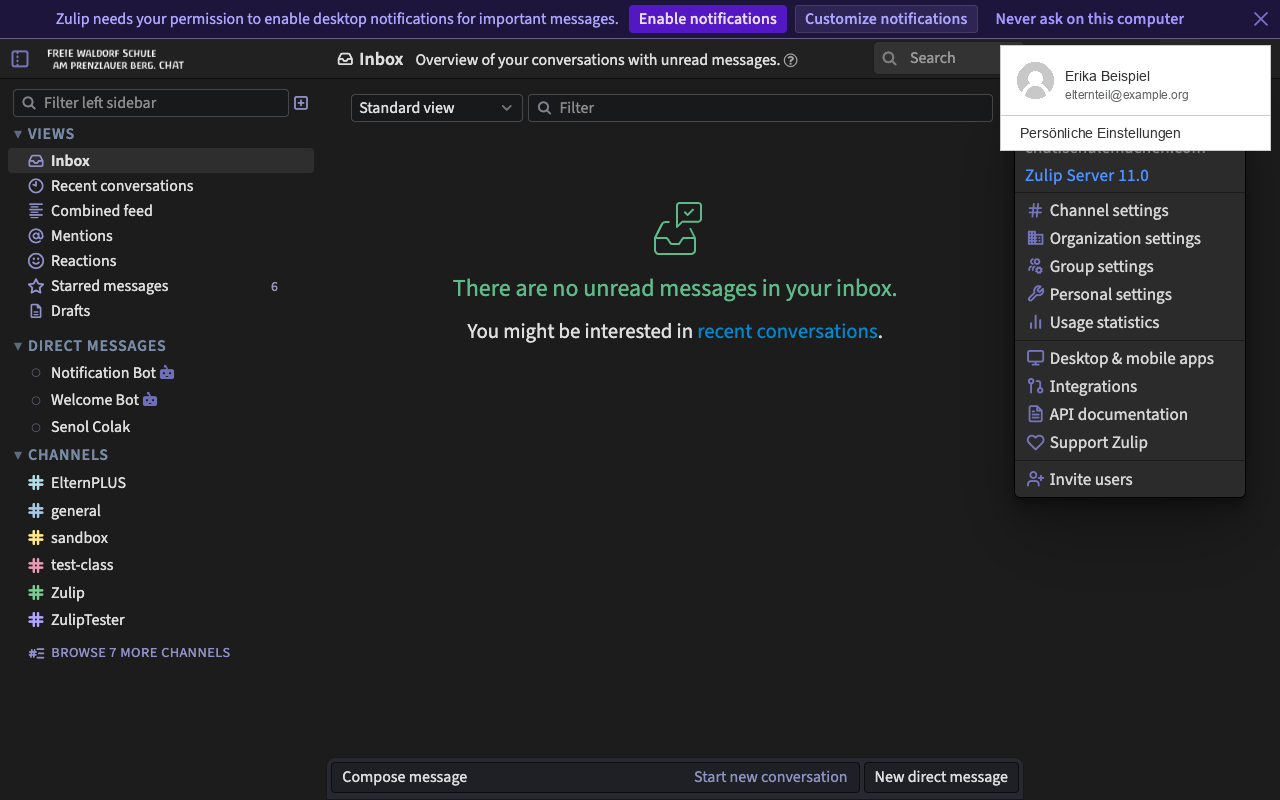
Step 8a: The settings dropdown menu opened via the gear icon. 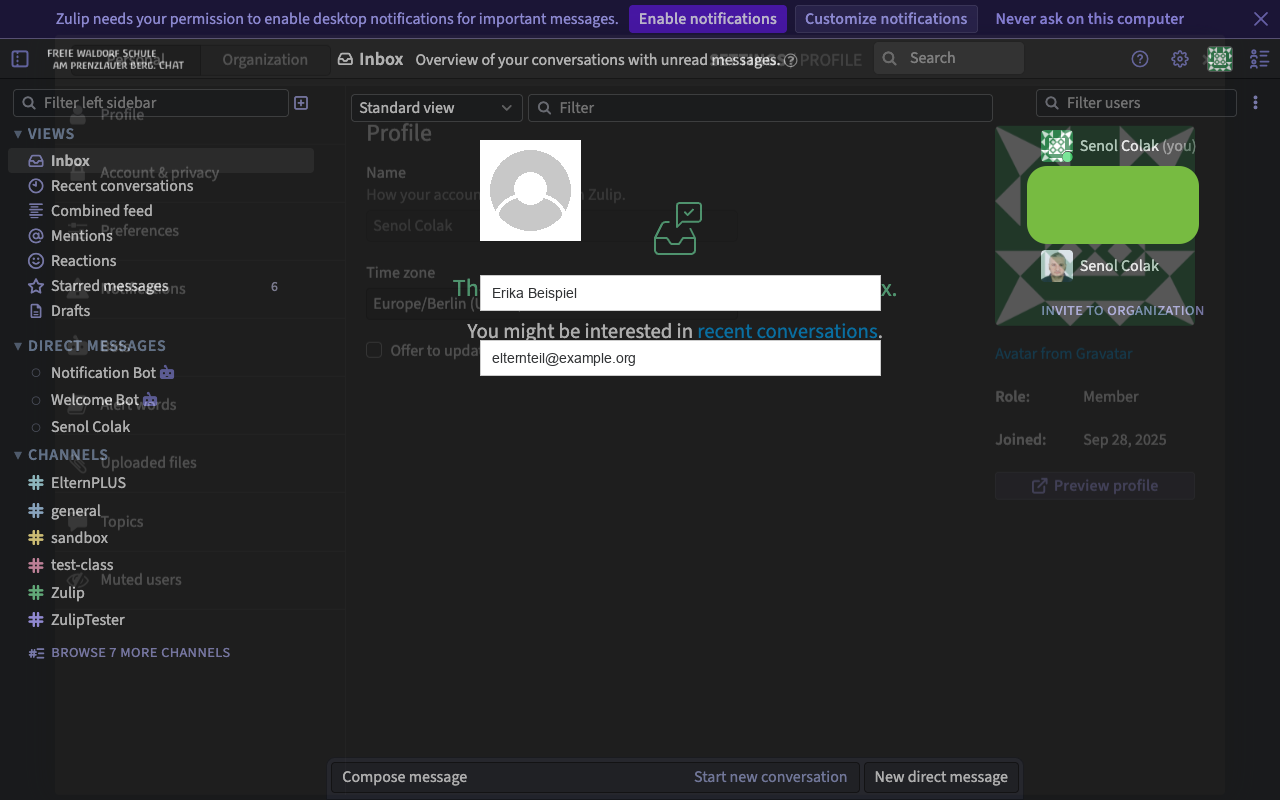
Step 8b: The Personal settings screen in Zulip. -
9
Adjust Notification Settings
Inside Personal settings, navigate to the Notifications tab.
Here you can customize exactly which events (e.g., mentions or direct messages) trigger an email or push notification on your smartphone.
-
10
Logging Out Safely
If you use Zulip on a shared or public computer, always remember to log out.
Click the gear icon in the top right and select Log out at the bottom of the menu.
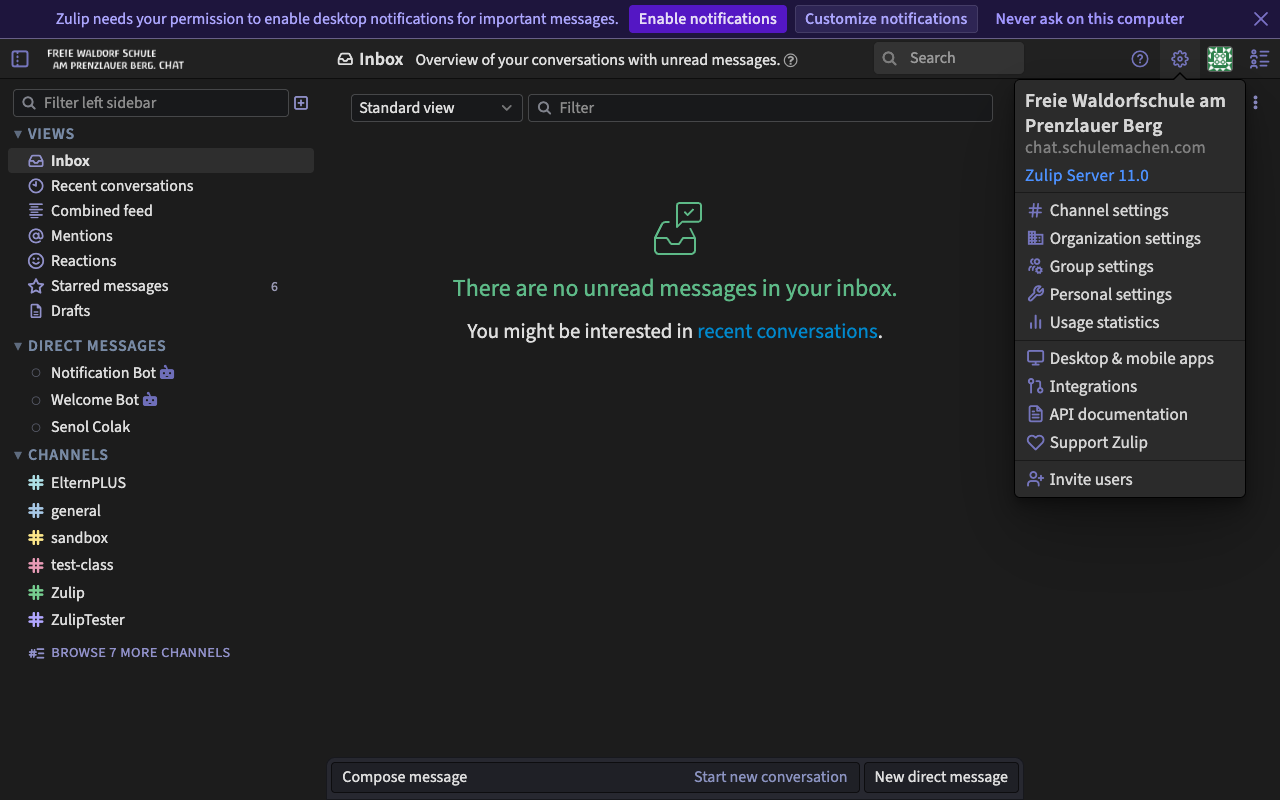
Step 10: The Log out option in the gear settings menu. -
11
Privacy Rules for Families
To protect the privacy of all community members, please follow these guidelines:
- Use Direct Messages: Do not post sensitive personal details about your children (e.g., sick notes or grades) in large public channels. Always discuss these privately with the class teacher.
- No Private Contact Info: Do not share phone numbers, home addresses, or private email addresses in school-wide channels.
- No Passwords: Never write passwords or OTP security codes in any chat thread, including direct messages.